
Getting Started with ACE 2D/3D Translator
IMPORTANT: If you haven't installed ACE 2D/3D Translator please request a free trial or contact our sales team.
1. License Setup
2. Asking Questions and Getting Personal Assistance
3. Convert Any Format in just 4 Steps!
4. ODB++ Import and Export
5. DXF/DWG Import and Export
6. GDSII Import and Export
7. PDF/Postscript Import and Export
8. High Resolution Bitmap/TIFF Import and Export
9. Using the Viewer with Editing Capabilities
10. 3D STEP Import and Export
11. Numerical Cloud (Monthly Subscription for ACE 2D/3D Translator)
1. License Setup:
ACE 2D/3D Translator accepts many different license methods. Please choose the setup instructions that best meet your requirements:
Trial License or Permanent Flexnet Key (Single User)
Network Flexnet Key (Floating)
Activation Code (Numerical Cloud and Single User)
Feel free to contact us for assistance with any license problems.
1.1. Trial License or Permanent Flexnet Key (Single User)
Typically when you receive a FLEXnet License key from us (either Trial or Permanent), make sure to copy all lines of the FEATURE (including the word "FEATURE") to the clipboard and paste into the space provided on the Enter License Key dialog. Then press button "Activate". See below for a sample FLEXnet key.
FEATURE ace3000 numinno 6.0 28-jan-2011 uncounted HOSTID=ANY \
    ISSUED=23-jan-2011 \
    NOTICE=@demo_license_for_evaluation_only;ace3000 TS_OK \
    SIGN="268C 1021 B383 A4BB 6AAD 0B10 BA1F AD1E 4B13 ABD1 1BA7 \
    7270 E28A 2A28 3295 02EF C233 4417 17EF A299 A235 6454 441D \
    6473 339F 0358 68DF 204A 8A78 b5A4"
Screen capture of Enter License Key Dialog with FLEXnet License Key pasted:
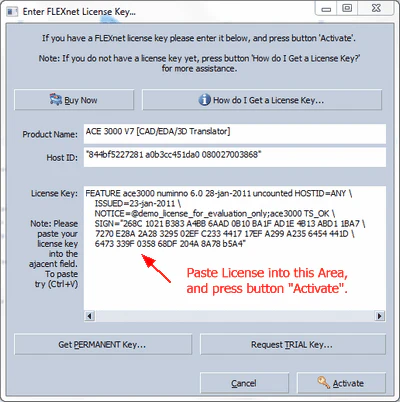
Important: When pasting your FLEXnet License Key, make sure there are not any "strange" or "extra" characters that show up in the License Key Dialog. If so, make sure to delete them before pressing button "Activate"
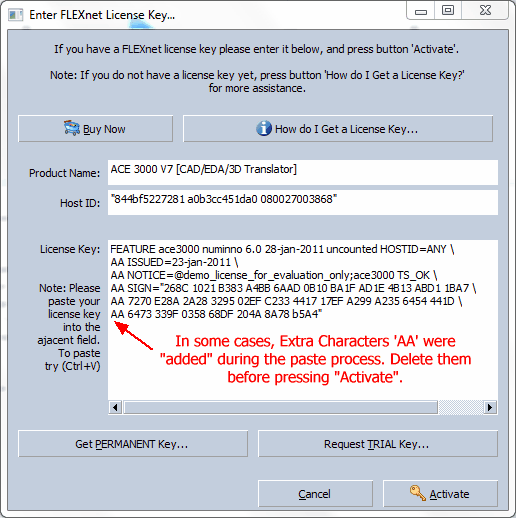
Note: Other potential License errors include:
Invalid Clock: Your computer is set to a date that is either 1 year ahead or 1 year behind. Make sure to set your computer to a valid date will resolve the issue.
Invalid KEY: Either your license key contains extra characters (which occurred during pating - as described above), or it's not a valid license key.
Common Questions:
| How do I get my HOSTID? I want to use FLEXnet Licensing |
| When I entered my trial license key, I got the message "System Clock Has Been Set Back"? |
1.2 Network Flexnet Key (Floating)
ACE 2D/3D Translator uses FLEXnet Publisher (formerly FLEXlm) for concurrent license management. All new and existing concurrent license customers will use FLEXnet Publisher to authorize each product user within their environment. Please view the following network installation instructions.
Common Questions:
1.3 Activation Code (Numerical Cloud and Single User)
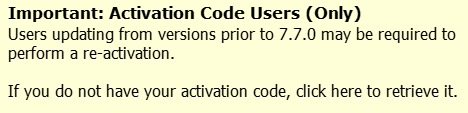
The activation code is a quick and easy process to validate your license and permits you the freedom to easily move your license to another computer. All Numerical Cloud users and a majority of all customers receive an activation code.
Start ACE 2D/3D Translator and go to menu: Help | Enter License Key | Activate...
Enter your activation code and complete the registration process.
NOTE: When prompted create a unique password that you will remember. You will be asked for that password, in the event you need to transfer ACE 2D/3D Translator to another computer or re-install the software.
Common Questions:
2. Asking Questions and Getting Personal Assistance
The Ask for Help box, allows anyone to type in a question (or keywords). ACE 2D/3D Translator will search 1000's of posts to quickly find answers. This is a resource that has been part of our software since day one, but not everyone is aware of this feature.
View the tutorial movie below showing how easy and fast it is to find answers to your questions:
Need more? Visit the Numerical Innovations - Help Center for hundreds of related topics and helpful articles. Get in contact with our engineering team: Open a Support Ticket
3. Convert Any Format in just 4 Steps!
With ACE 2D/3D Translator all file formats are Converted in just 4 STEPS! In addition ACE has a friendly and modern GUI which drastically reduces the learning curve. Most users are able to successfully convert their first files in less than 5 minutes!
4. ODB++ Import and Export
ACE 2D/3D Translator is the only translator that can import and export ODB++ archives. Video tutorial coming soon.
5. DXF/DWG Import and Export
ACE 2D/3D Translator has the most comprehensive DXF/DWG Importer. Please view our series of video tutorials that demonstrate all the required steps.
6. GDSII Import and Export
ACE 2D/3D Translator has the most advanced GDSII Importer & Exporter. Please view our series of video tutorials that demonstrate all the required steps.
7. PDF/Postscript Import and Export
Please check out the Postscript and PDF Conversion Guideline.
8. High Resolution Bitmap/TIFF Import and Export
ACE 2D/3D Translator permits the importing of Bitmaps and other image files & converting them into a vector format. Please view our series of video tutorials that demonstrate all the required steps.
9. Using the Viewer with Editing Capabilities
ACE 2D/3D Translator has a viewer that includes many editing capabilities like Copy/Move, Delete, DRC, NC Route Editor and more! Please view our series of video tutorials that demonstrate all the required steps.
10. 3D STEP Import and Export
ACE 2D/3D Translator is the only CAM software that has a true native 3D STEP translator. Other products use external libraries which sometimes create export errors. Please view our series of video tutorials that demonstrate all the required steps.
11. Numerical Cloud (Monthly Subscription for ACE 2D/3D Translator)
Numerical Cloud is a monthly subscription that provides access to ACE 2D/3D Translator without a large upfront investment. Learn more about Numerical Cloud.

Need Additional Help?
Visit our Help Center or Open a Support Ticket for personalized assistance.