
How to Use Composite Layers in FAB 3000
Composite Layers in FAB 3000 make it easier to work with overlapping dark and clear geometry without having to construct complicated polygons or shapes manually.
They can be especially useful when working with Gerber or CAM data containing cutouts, openings, clearances, or nested geometry.
How Composite Levels Work
A layer containing one or more objects with a Composite Level greater than zero is considered a composite layer.
Objects are drawn in order based on their Composite Level, starting at 0 and increasing up to 1000.
Even levels (including 0) are filled dark — think Paint. Odd levels are drawn clear — think Scratch.
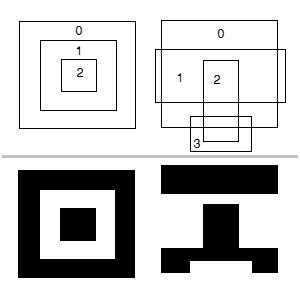
Why Composite Levels Matter
Instead of manually rebuilding complicated polygons, Composite Levels allow you to control which areas remain dark and which areas are cleared.
This can make editing complex Gerber and CAM data faster and easier, especially when preparing manufacturing data.
How to Change a Composite Level
- Select the object(s).
- Go to Edit > Properties, or use the Object Properties panel on the right side of the FAB 3000 editor.
- Locate Composite Level and select the desired value.
- Click OK or Apply.
If needed, you can use Undo to reverse your changes.
Automatically Assign Composite Levels
For a group of overlapping objects, FAB 3000 can automatically determine Composite Levels based on their interior locations.
Simply select the objects and go to:
Edit > De-Embed
Tip: For complex imported data, De-Embed can save time by automatically assigning Composite Levels based on object nesting.
Need More Composite Layer Tools?
Go to:
Tools > Composite Wizard
The Composite Wizard provides additional tools for working with composite layer data in FAB 3000.
Simplify Complex Gerber & CAM Editing
Working with complex Gerber data? Try FAB 3000 free and see how Composite Layers and other CAM editing tools can simplify manufacturing preparation.
Try FAB 3000 free
Get Unlimited Access to All Our Software
Numerical Cloud Subscription includes FAB 3000, ACE 2D/3D Translator, EasyGerb, and more — all with one activation code for unlimited computers.
Starting at $99/month • Save over 30% with annual billing